
The dashboard lists every shipping discount created with the app.
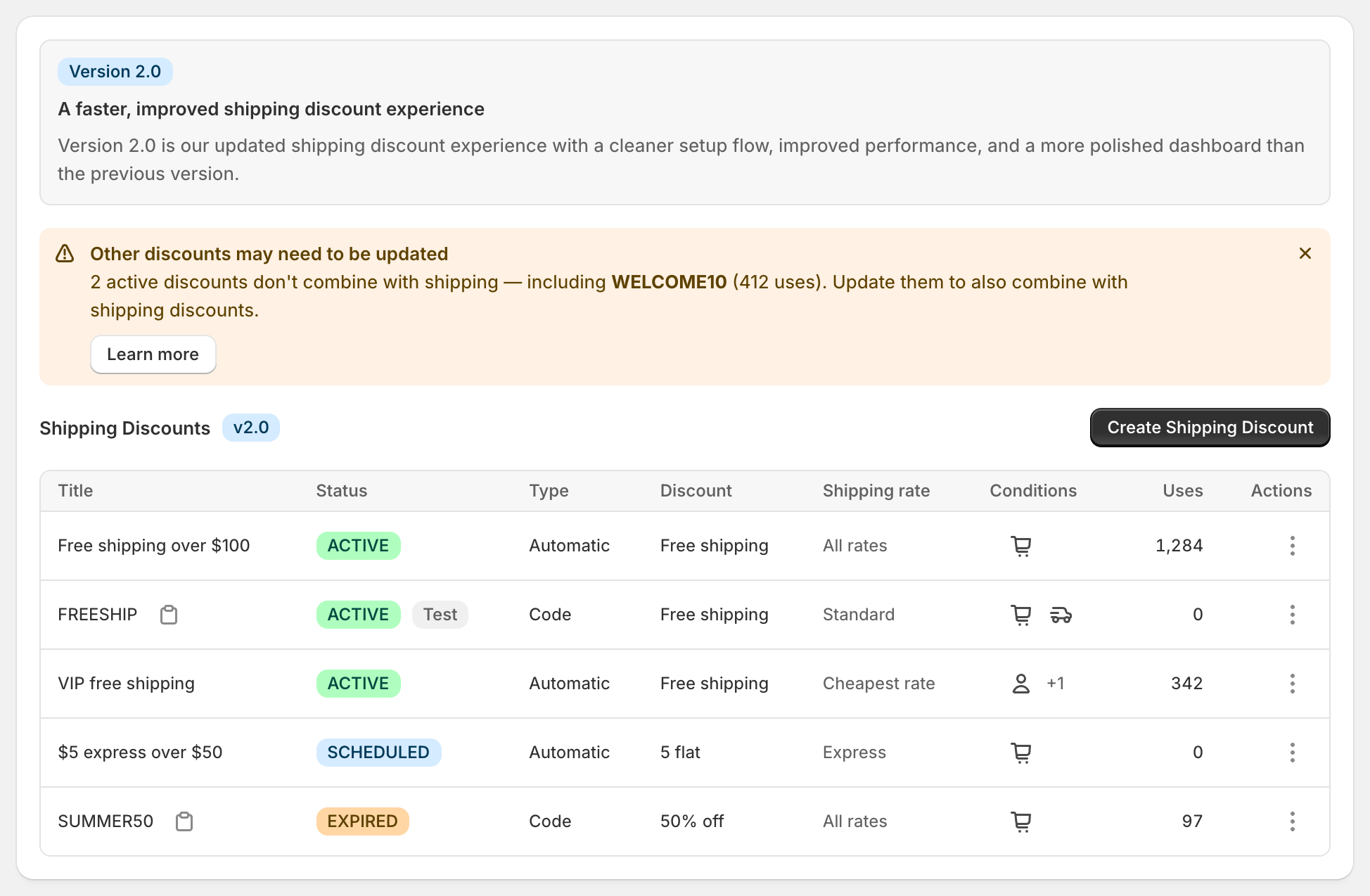
Columns
Title: click it to open the discount. Code discounts have a button to copy the code.
Status: Active, Scheduled or Expired, plus a Test badge when Test mode is on.
Conditions: icons for the conditions in the first rule group. Click them to see all rule groups.
Discount: for example "Free shipping", "50% off", "5 off" or "3 flat".
Shipping rate: which rates are discounted, for example "All rates", "Cheapest rate" or rate names.
Uses: how many orders have used the discount.
Edit, pause or delete
Edit: click the title, or choose Edit from the row's menu.
Pause: turn on Test mode. The discount stays saved but customers won't get it.
Delete: choose Delete from the row's menu. This can't be undone.
Other things you might see
Setup guide: a checklist for new stores. You can hide it and bring it back with Show setup guide.
"Other discounts may need to be updated": you have product or order discounts that aren't set to combine with shipping discounts, so customers using them won't get free shipping. Click Learn more to see which ones. See Combining with other discounts.
Language: switch the app's language from the selector at the top.