
As an example, this walks through free shipping on orders over $100 in RM: Advanced Free Shipping. Use your own amounts and options as you go: every setting below can be changed.
Here's the finished example. The numbers match the steps below.
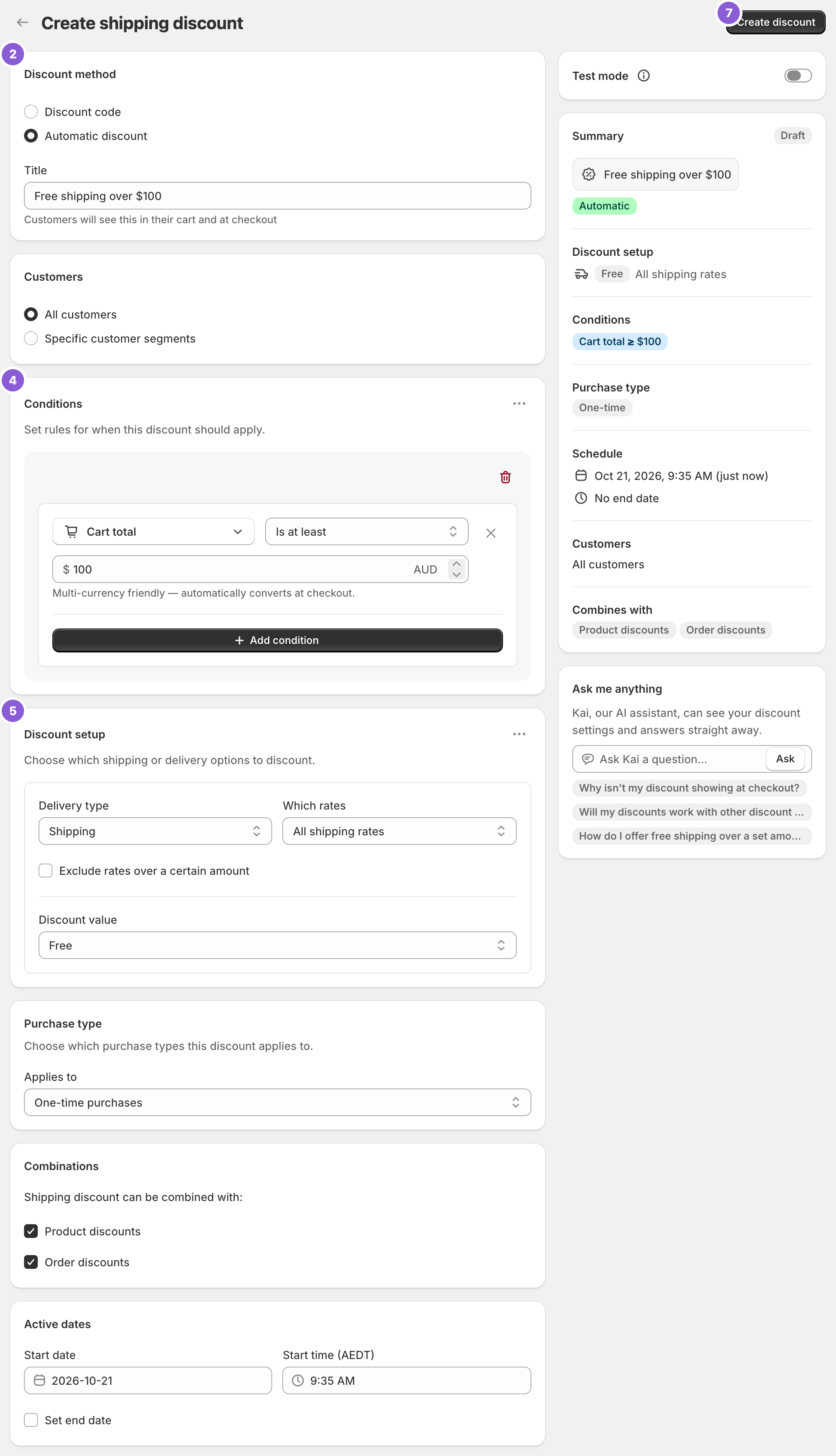
1. Start a new discount
On the app's dashboard, click Create Shipping Discount.
2. Choose the discount method
Under Discount method, pick one:
Automatic discount applies by itself when the conditions are met. This is what most stores want for free shipping.
Discount code applies only when the customer enters a code.
Choose carefully: the method can't be changed after the discount is created. New discounts start on Discount code, so switch to Automatic discount if that's what you want.
3. Give it a title
For automatic discounts, the Title is shown to customers in their cart and at checkout, so write it for them: "Free shipping over $100", not "Rule 3".
For code discounts, the code is what customers see.
4. Add a condition
In Conditions, click Add a condition. It starts with Cart total. For the example:
Set the operator to Is at least.
Enter 100.
Leave the conditions empty and the discount applies to every order. See How rules work for the other conditions.
5. Choose what gets discounted
In Discount setup, for the example:
Delivery type: Shipping
Which rates: All shipping rates
Discount value: Free
You could instead discount only the cheapest rate or specific rates, or take a percentage or fixed amount off. See Choose which rates to discount and Discount types.
6. Check the other settings
Customers: All customers, or specific customer segments.
Purchase type: One-time purchases (the default). Change this if you sell subscriptions. See Subscriptions.
Combinations: Product discounts and Order discounts are ticked by default, so your discount codes and sales still work alongside free shipping. See Combining with other discounts.
Active dates: starts now. Add an end date if it's a promotion.
7. Create it
Click Create discount. It's live straight away (or from the start date you set).
Want to try it before customers see it? Switch on Test mode in the right-hand column before creating it. See Test a discount before going live.